
Easily the best computer I’ve ever owned, my 2006 Mac Pro (model 1,1) is still doing sterling work as my main machine. With two 2.66 GHz dual core Intel Xeon 5150 processors and 7 GBs of RAM it still happily chomps its way through most tasks that I throw at it and runs Lion without issue.
There is however one main area where it’s just starting to look a bit long in the tooth and that’s disk access speeds. Boot up time has become rather pedestrian and Lightroom is just starting to creak a little when handling my 10,000 plus library of mostly 21 megapixel RAW files. Then there’s Photoshop which takes about 30 seconds to launch.
I’m sorely tempted by a new 27″ iMac but I’m guessing there’s a refresh due at any time and have therefore set myself a budget of £200 plus VAT to ‘pimp’ my Mac Pro for the time being. Given my recent success with installing an SSD in my PowerMac Cube I decided my first purchase should be an SSD to replace the original system disk in the Pro.

Kingston SSD & Icy Dock
I opted for a Kingston 120 GB V+200 SATA3 unit which came in at £121.32 and mounted it an Icy Dock converter box for £9.57. Currently in the Mac Pro I have the original 160 GB system disk, two 400 GB drives in a striped 800 GB RAID and an additional single 750 GB drive. For backup I have an external 2 TB MyBook connected via Firewire 800.
I decided I wanted a clean install of Lion on the new drive, not least because it’s quite difficult to copy the recovery partition that the existing Lion installation had created and because there was still detritus from my original PowerMac G5 which I’d copied over when I first bought the Mac Pro. Having already upgraded to Lion I no longer had the original installation files so using my MacBook which is still running Snow Leopard I grabbed the files via the App Store and created an install DVD using this guide.

Icy Dock Fitted In Mac Pro Sled
I pulled out all my other drives and installed the SSD using the Icy Dock. I then booted from the installation DVD which, by the way, took so long that I was literally just about to give up and restart when it finally launched.
I formatted the SSD into one partition using Disk Utility and installed Lion, the process taking about 15 minutes. I decided against transferring any old files as I wanted to keep this install as clean as possible. I reinstalled Lightroom and Photoshop from DVD and a few other items from the App Store that I still use, replaced my other drives and tried the system out. The difference in speed is very noticeable, boot now takes about 10-15 seconds as opposed to the 1 minute plus it used to, Photoshop launches in less than 5 seconds and most other Apps launch instantaneously. It is certainly a very worthwhile upgrade.
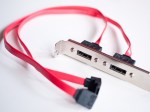
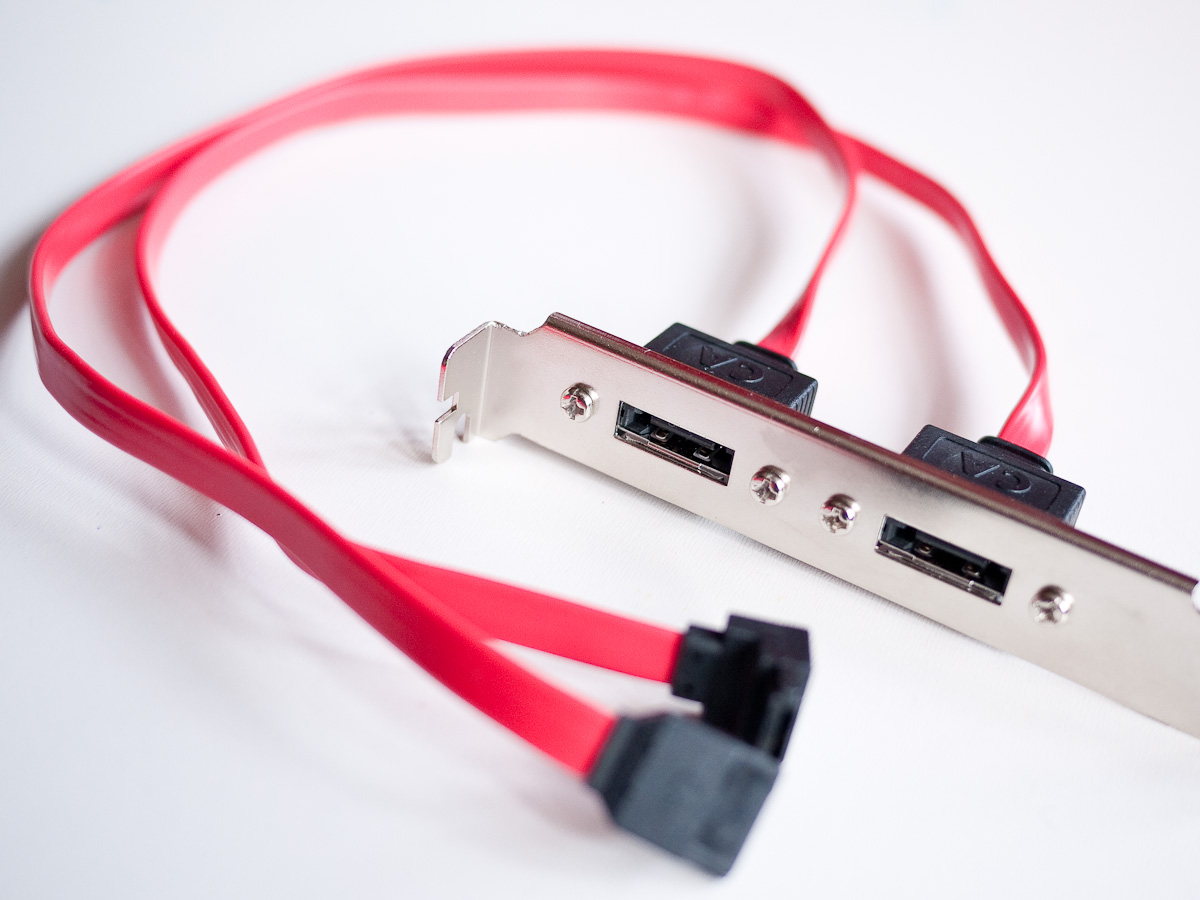
eSATA Extender
I’d also quite like a faster way of connecting external drives than the existing Firewire 800. I can’t imagine Thunderbolt coming to the Mac Pro any time soon and my mind therefore turned to USB 3 and eSATA. The later option is a simple and relatively cheap upgrade given that the Mac Pro sports two free SATA ports on the mainboard. I ordered an upgrade kit from Sonnet for £22.49 which provides two eSATA ports via a faceplate which can be mounted in a spare PCIe bay.
Fitting the eSATA kit is a little bit fiddly and in order to gain access to the SATA ports on the motherboard requires the removal of the RAM riser card unit, the CPU heatsink cover and the CPU fan assembly. Fortunately the Sonnet kit contains very clear and precise instructions so whilst fiddly it was a relatively pain free upgrade.
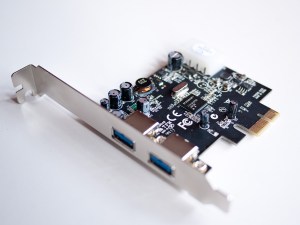
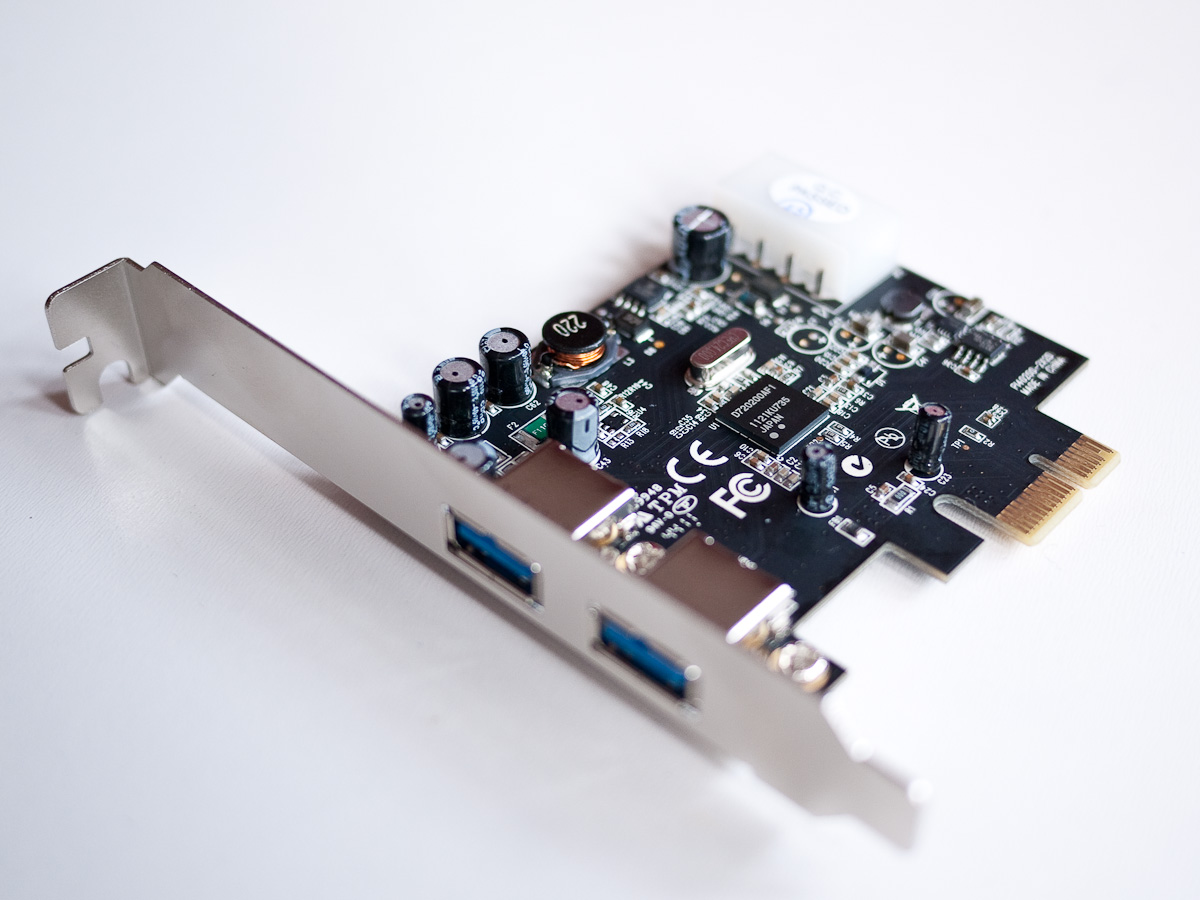
USB 3 PCIe Card
Apple don’t currently support USB 3 with any of their products. You can however add it to the Mac Pro via the PCIe slots. LaCie make a card and supply drivers for free download. The LaCie card is a little on the expensive side compared to other manufacturers and I noticed that this card by StarTech looks identical and uses the same NEC chip. I therefore decided to take a gamble and order the StarTech card which cost £16.66 in the hope that it would work with the LaCie drivers.
Installation was of course straightforward, there is an optional Molex connector on the card which presumably provides additional power for any USB devices which aren’t self powered. I made an attempt to run an extender cable from the card to the spare Molex connector in the optical drive bay but couldn’t find a satisfactory way of routing it. As I will most likely be connecting an external drive I’m not overly fussed about the additional power option.

Icy Box USB 3.0 Enclosure
I opted for an Icy Box HDD enclosure with a USB 3.0 interface, specifically the IB-318StU3-B. It’s cheap but functional, installation of the HDD is a simple affair and the unit is supplied with a USB 3.0 cable. After testing its SATA speed I removed a 750 GB SATA II drive that was installed in one of the Mac Pro’s drive bays and installed it in the Icy Dock. I hooked the unit up to the USB 3.0 ports but the drive was not recognised. I then tried connecting to the Pro’s built in USB 2.0 ports and the drive mounted with no problems. After a quick search I was able to find some drivers that would work with non LaCie drives and after successfully installing the Kext rebooted and the drive mounted whilst connected to the USB 3.0 ports! I used Blackmagic Disk Speed Test which I downloaded from the App Store to test the drive and found the drive was quicker whilst mounted in the USB 3.0 enclosure than it had been when connected by SATA. In fact the Seagate HDD is pretty much operating at its quoted maximum sustained data tranfer rate, I shall have to try an SSD in the enclosure next. Full results are below.
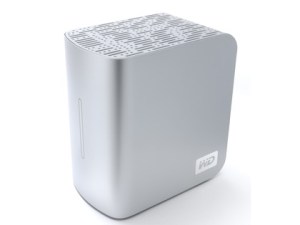
MyBook Studio Edition
I then connected the MyBook via eSATA and was somewhat surprised to find on testing that it was roughly twice as fast as my internal RAID. This didn’t really make any sense given that both were connected to the same bus. I ran a few more tests and confirmed the internal RAID was definitely under performing. I decided to repartition the drives and rebuild the array. I restored the data from Time Machine and tested again and found it was now much faster though still trailing the the MyBook. I’m assuming HDD’s in the MyBook are just faster drives.
Using Blackmagic again these are the average results I achieved showing the eSATA RAID achieving the fastest write speed and the SSD the fastest read speed:-
Drive/s Write MB/s Read MB/s
- SSD Write 103 Read 185
- SATA 750 GB Write 44 Read 55 (SATA II)
- USB 3.0 Write 78 Read 76 (Above SATA II HDD)
- SATA RAID Write 51 Read 67
- SATA RAID Write 78 Read 119 (Rebuilt)
- USB2 Write 35 Read 35 (MyBook via USB 3 Card)
- Firewire 800 Write 34 Read 14 (MyBook)
- eSATA RAID Write 116 Read 130 (MyBook)
- SATA RAID (New Drives) Write 310 Read 323 (See Update Below)
I’m not sure why the MyBook connected via Firewire 800 is proving slower than when connected via USB 2, a rather odd result. I’m pleased with the eSATA performance and as using this method connects directly to the onboard SATA the MyBook is sleeping and waking with the main machine. I hope shortly to have a USB 3 device to test, there seems to be a distinct lack of decent products available at the moment. So far then I’ve spent £170.04 + VAT. A USB 3 drive enclosure will probably take me over budget and one other upgrade I am tempted by, an ATI 5770 graphics card, will of course completely blow it.
(Update 19th April 2012)
After much mmming and ahhhing about whether to buy a new iMac or Mac Pro I’ve decided instead to further improve my current Mac Pro. Out goes the ATI X1900 graphics adapter and in comes an AMD 5770. A simple swap out although an additional mini display port to DVI adapter was required to hook up my two Cinema Displays. This has allowed me to download some games from the App Store to try, namely Dirt 2 and Bioshock which both look stunning in 1920 x 1200 resolution. The 5770 is also even quieter than the less than noisy itself X1900, which is a nice bonus.
Also on their way out the two 400 GB Seagate drives that formed my RAID. In their place, two Seagate Barracuda 2TB, 7200 RPM, 6 GBit/s drives with 64MB caches (ST2000DM001.) Seagate quotes average data transfer rates for these drives at 156 MB/s and a maximum sustained rate of 210 MB/s, this is a considerable improvement on the previous drives (ST3400620AS) which were rated at 78 MB/s maximum sustained data transfer rate. Once I’d swapped out the drives and built the striped RAID (0) via Disk Utility I again fired up Blackmagic Disk Speed Test and finally achieved some respectable results which I’ve added to the table above.

Blackmagic Disk Speed Test










 Retrocosm's Vintage Computing, Tech & Music Blog