Apple Power Mac G4 Cube

I’m still fully acquainting myself with my recently acquired iMac G4, however my attention has now been momentarily redirected towards another machine that has come my way, a Power Mac G4 Cube.  Gratefully received for a nominal fee from a friend of one of my employees the Cube is in very nice working condition and came with the original speakers, mouse, keyboard and a 15″ Studio Display.  Like or loath them Cubes are difficult to ignore, from their styling to their rather ignominious past they are certainly a talking point.
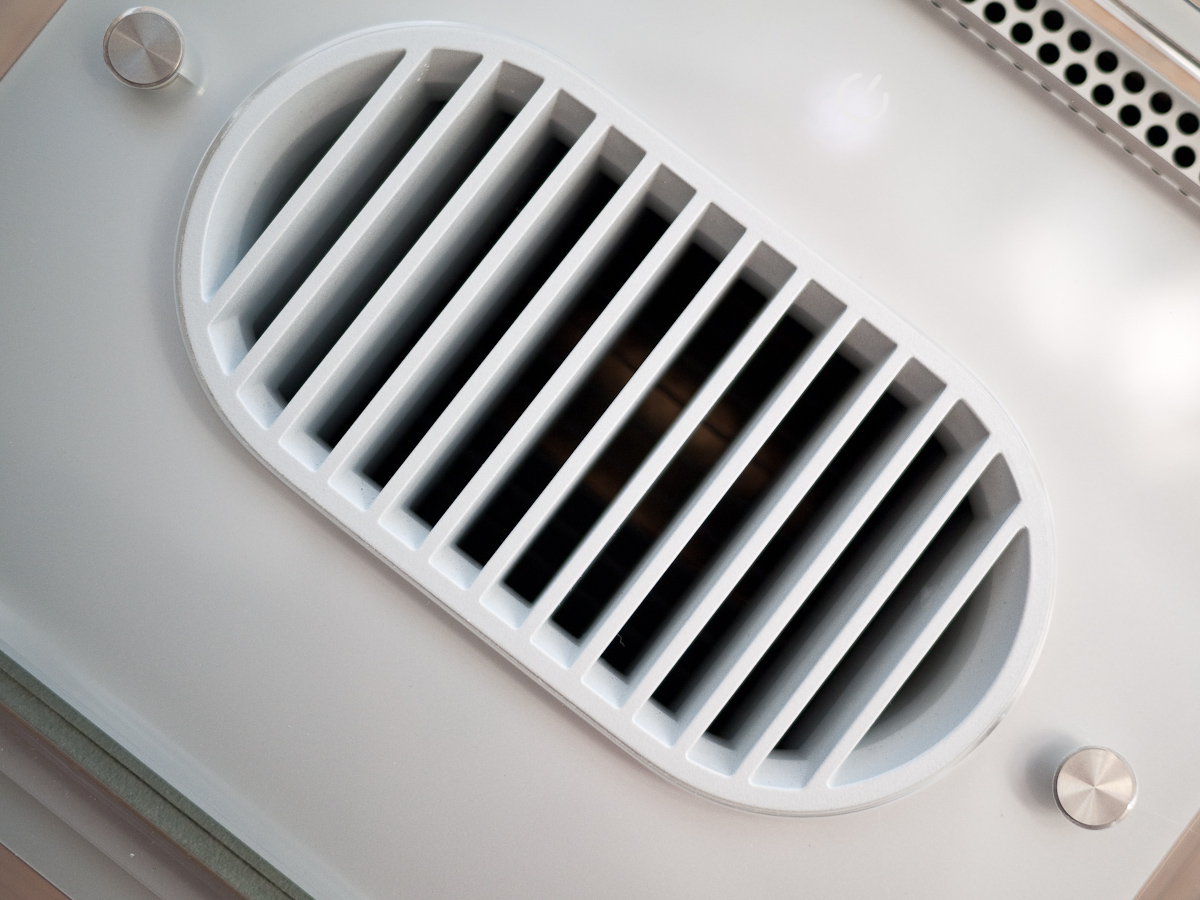
Heat Vent

Mine appears to have been a fairly early model equipped with a 450 mhz G4, 20 GB HDD and 128 MB of RAM.  The previous owner had added another 576 MB of RAM, I managed to dig around and find a couple of PC 100 512 MB sticks and so pulled out and replaced two of the existing sticks maxing the Cube out at 1.5 GB.  The original Maxtor drive was slow and noisy so I also pulled that out and replaced it with a somewhat quieter 40 GB IBM model.

I decided to install Leopard, interested to see how the 450 mhz G4 would cope.  Using the same trick I’d employed for the iMac, I booted the Cube in target disk mode and ran the installation DVD from my G4 Mac Mini which was connected via Firewire.  The installation process began and progressed quite happily before falling over after about 20 minutes.

Power Mac G4 Cube

It was at this point that I realised the Cube’s firmware had not been updated.  The 4.1.9 update and instructions for its installation can be found here.  Updating the firmware can only be done from OS 9 so the first step was to install this which went without a hitch.  I duly followed the update firmware instructions and once successfully completed was able to install Leopard.

It seems to be running fine, I’ve had no major issues yet.  I’ve already got into the habit of disabling Flash by default whether it be whilst running Safari or Firefox.  I remain convinced that a combination of Flash and Leopard were responsible for killing my Power Mac G5 which had its first kernel panic whilst running some Flash content and never fully recovered.  In my experience the PowerPC architecture and Flash don’t mix.

Harman Kardon Speaker

Being the first Cube that I’ve owned I’m starting to experience some of the foibles of the design, most irritating of which must be the power button which seems to have a life of its own.  I’ve read reports of tape being used internally to cover the touch sensitive switch in order to reduce its sensitivity, I may try this.

My case is in very good condition but does suffer from some of the infamous hairline cracks and my Studio Display has a broken stand which appears to be a very common failing.  Overall however I am absolutely thrilled to be a Cube owner at long last, especially for such a low outlay.  Personally I absolutely love the design and am very impressed by the performance of the machine given its decade old specification.

I’m also pleasantly surprised by the fidelity of the speakers which at 10 watts per channel sound surprisingly good and produce good levels of bass for their diminutive size.

Complete Cube System

I shall attempt a repair of the display and may look at some other options for the HDD.  I would like to fit an SSD or even have an attempt at installing the OS onto a compact flash card as I did with my Wyse Terminal although I’m not sure anyone has had any success with the later.

I’ve registered with the excellent Cube Owner forums having discovered a great deal of useful information there not least a very detailed guide to fixing the Studio Display stand.

The reasons for the Cube’s demise have been well documented but all of those reasons, valid or not, are irrelevant in the second hand market.  Here we have a 10 year old machine that is still useful and remains drop dead gorgeous.
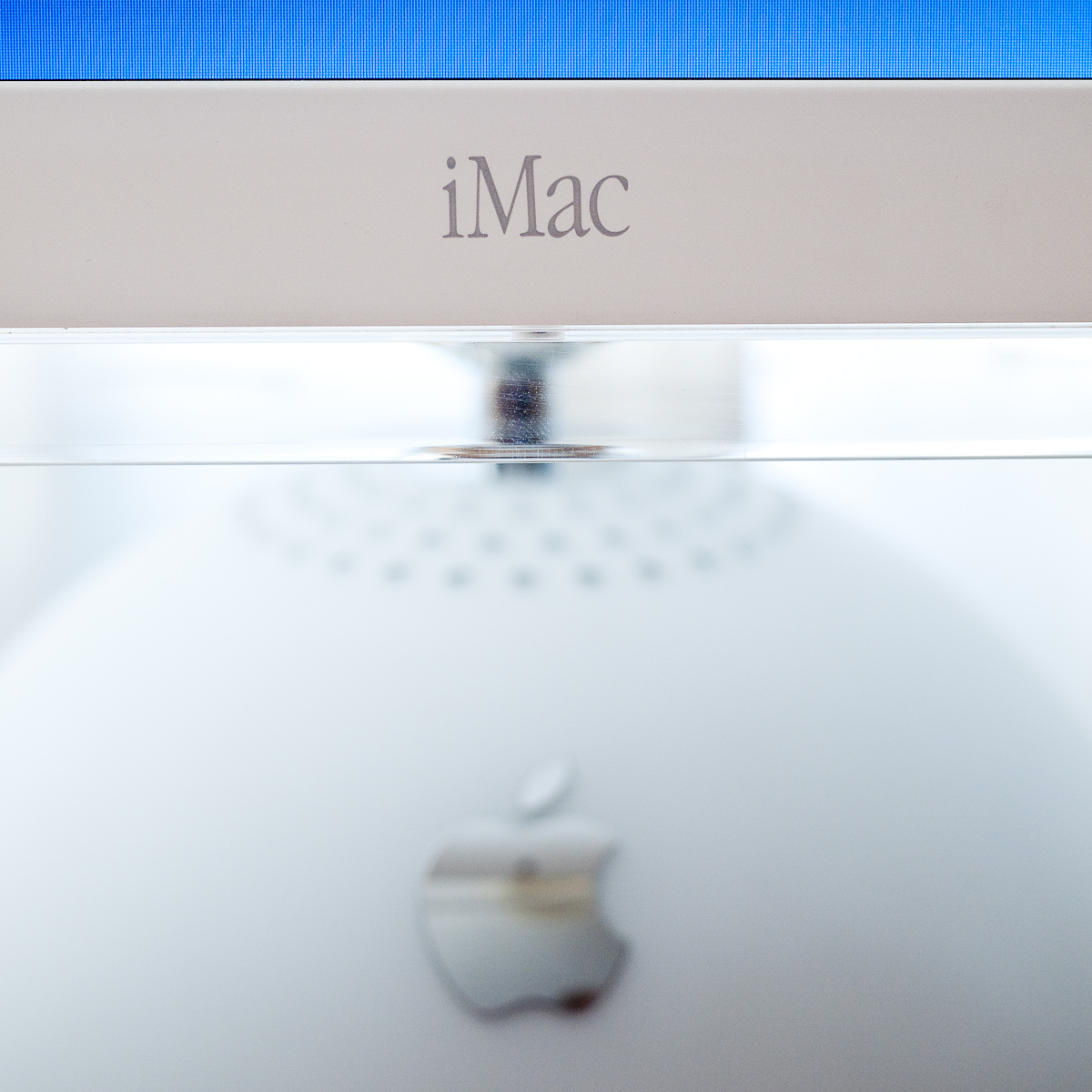
iMac G4 Dual Boot

It is almost ten years since Apple released the original flat panel iMac, introduced back in 2002 I remember first seeing them in the John Lewis department store.  At the time I was still hooked into the Wintel world but remember on seeing the iMac being seduced by the elegant simplicity of its design and its clear, crisp display.

iMac 15" Display

At the time I could not justify the outlay and so when what seems like a very short period later (10 years but who’s counting) I noticed one going for silly money on Ebay it was time to dive in.  The model I have is one of the earliest, a 700 mhz G4, 40 Gb HDD and 384 Mb of system memory.  It’s in lovely condition with very few marks and in full working order.

For the £40 or so pounds that I spent on it, it seems like a whole load of engineering and design goodness and doesn’t to my eye look at all dated.

Somewhat foolishly the previous owner had not bothered to erase their files so I quickly set about securely erasing the drive and repartitioning it.  This machine is one of the last that can boot into OS 9 as opposed to the running the Classic environment within OS X and I wanted to set it up as a dual boot machine as I need an OS 9 machine for some of my retro work.

Rear View Of Display

Using the OS 9.2 install disk that came with the iMac I successfully installed the OS onto a 10 GB partition and then installed OS X on to the remaining 30GB’s.  The OS X install disk that came with the machine was version 10.1.2 and to my surprise includes Internet Explorer 5.  Having not previously owned Macs from this period (my first Mac was a G4 Mac Mini bought in 2005) I hadn’t realised that Safari had only surfaced a few years later.

I was soon on line via ethernet and took all the available updates for for both OS’s which downloaded and installed without a hitch.

The iMac feels pretty snappy in use, I’m tempted to replace the 128 MB stick of ram in the user slot with 512 MB and I have an Airport card on the way to slot in to the base.

The included mouse was non functional and the keyboard was horribly yellowed but I have plenty of spares so apart from those issues I am absolutely thrilled with to have such a lovely iMac, the plastics of the main unit and LCD are very well preserved.

iMac G4 15"

I’m now going to have a play with OS 9, purely out of curiosity as I have no real experience of it and then try to decide where I can display this gorgeous machine in all its glory.  I can’t imagine hiding it away it would seem too sad.

(Update)

Ignoring all the prevailing advice I thought I’d have a crack at installing OS X Leopard on my newly acquired iMac G4.  As it stands it falls some way short of the minimum specifications recommended by Apple and indeed when attempting to install the OS the process recognises this and refuses to continue.  There are ways around this, including this method of fooling the installation software into believing the target machine meets the specs required.  Please note the link to Leopardassist on that page appears to be broken, you can find it here.

Leopard on iMac G4

Another method is to fire up the target machine in target disk mode (press and hold ‘T’ during boot) whilst connected by Firewire to another Mac that will run Leopard.  You can then run the installation disk from this second machine and instruct it to install onto the original machine which will be recognised as a Firewire drive.  I chose this later method as I have a Mac Mini G4 which I knew could run Leopard and given that it shares a G4 processor with the iMac would I believe offer the greatest chance of success.

The process went fairly smoothly, albeit slowly though the later was no surprise.  The iMac has booted into Leopard quite happily and although it’s clearly running more slowly than a more modern Mac it’s quite useable.  It’s my intention to upgrade the memory which I believe will make quite a difference, 384 MB is really not adequate, in the meantime I’ve turned off all of the dock animation effects and have ensured there are no background widgets running.

I thought it might be amusing to try Geekbench so I ran it in 32-bit mode on the iMac G4 and on my Macbook and MacPro just for comparison. the latter two machines ran the benchmark in a couple of seconds or so:-

MacPro 2 x 2.66 GHz Dual Core Xeon 5 GB Memory – 5538

MacBook 2.4 GHz Core 2 Duo 2 GB Memory – 3354

iMac G4 700 MHz 384 MB Memory – DNF (45 minutes elapsed before I sympathetically terminated the process)

So I’ll see how the iMac gets on with some more memory and if it becomes obvious that Leopard is too taxing I shall revert to Tiger.

(Further Update)Have now swapped out memory in the user slot for a 512 MB stick giving a total of 768 MB.

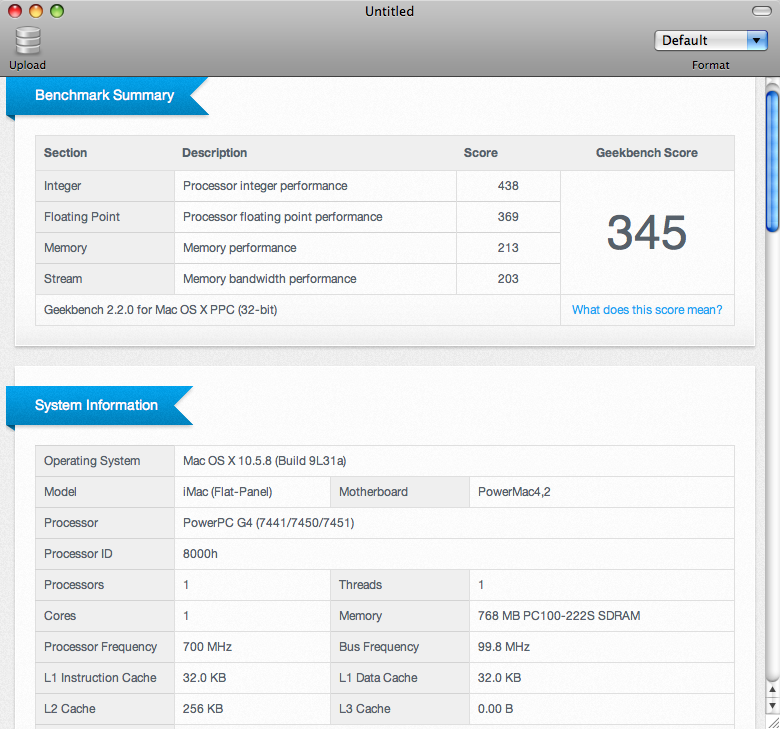
Ran Geekbench again and it completed in roughly six minutes with a score of 345.

Geekbench Score 345

BBS On CompactFlash

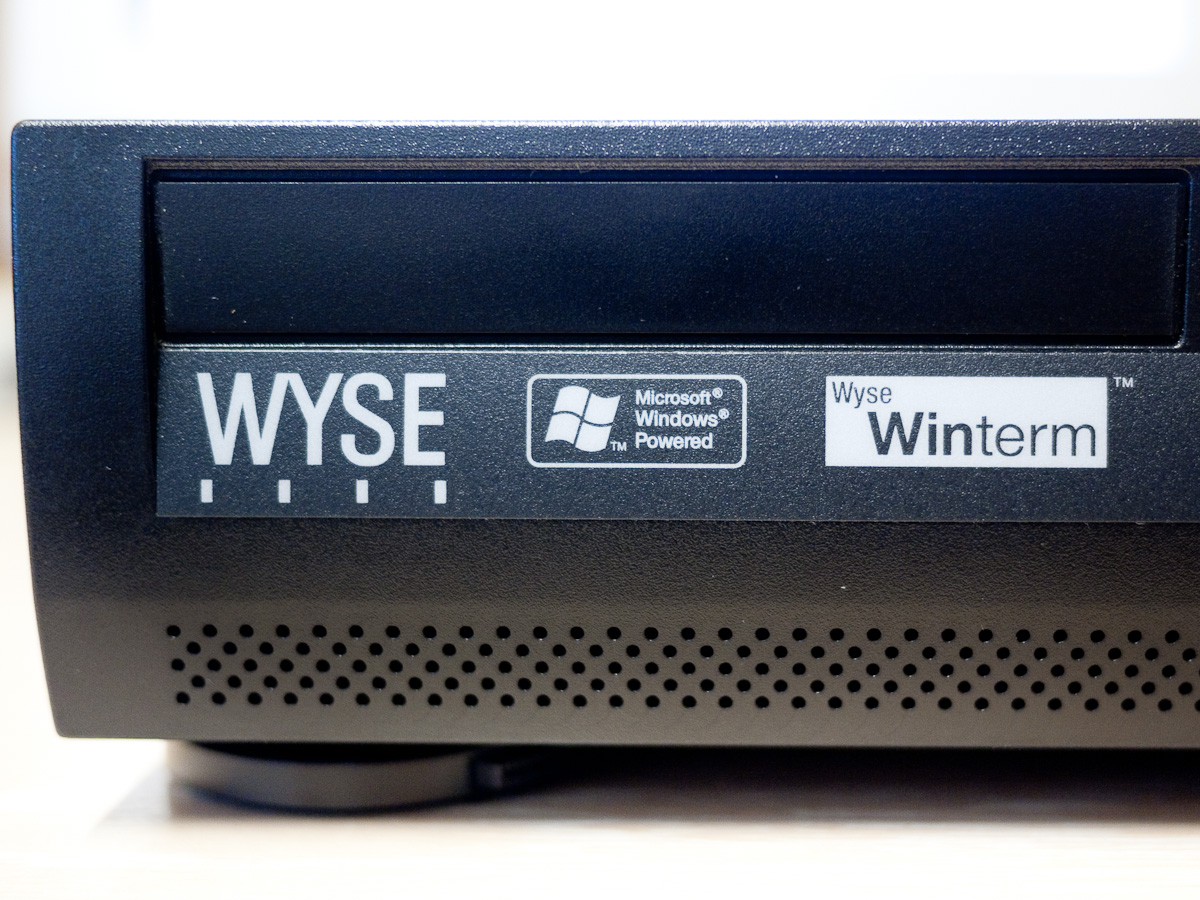
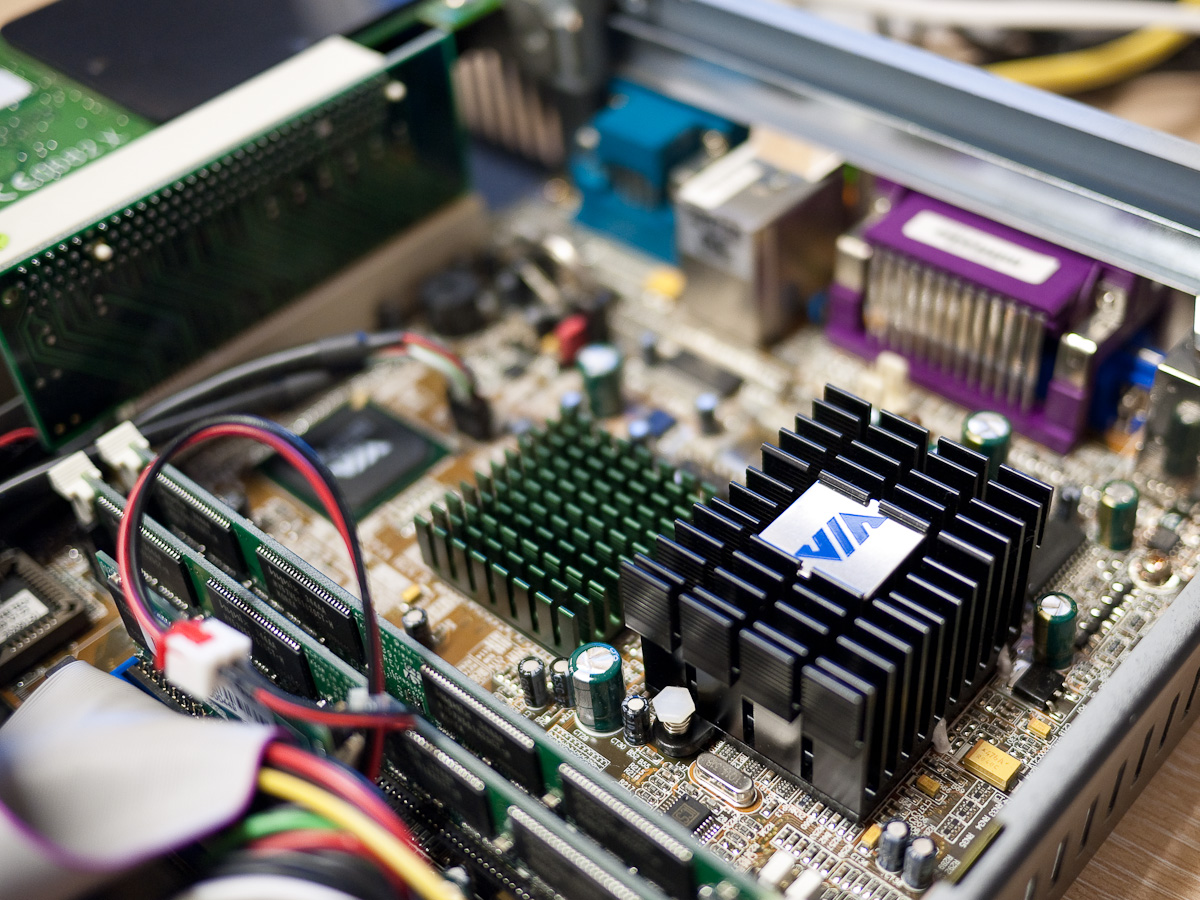
The BBS that I set up during this year’s Retrochallenge has been running on an old Athlon based Shuttle system that I built several years ago, it’s a nice little unit but its constant fan noise whirring in the corner of my office has started to irritate.  I therefore dug into my collection of old hardware looking for something that might offer a less intrusive solution.  A couple of Wyse WT9455XL Winterm units caught my eye.  These units are completely silent, based on VIA Epia Mini-ITX MB’s and utilising Via C3 (Samuel 2 core) passively cooled processors.

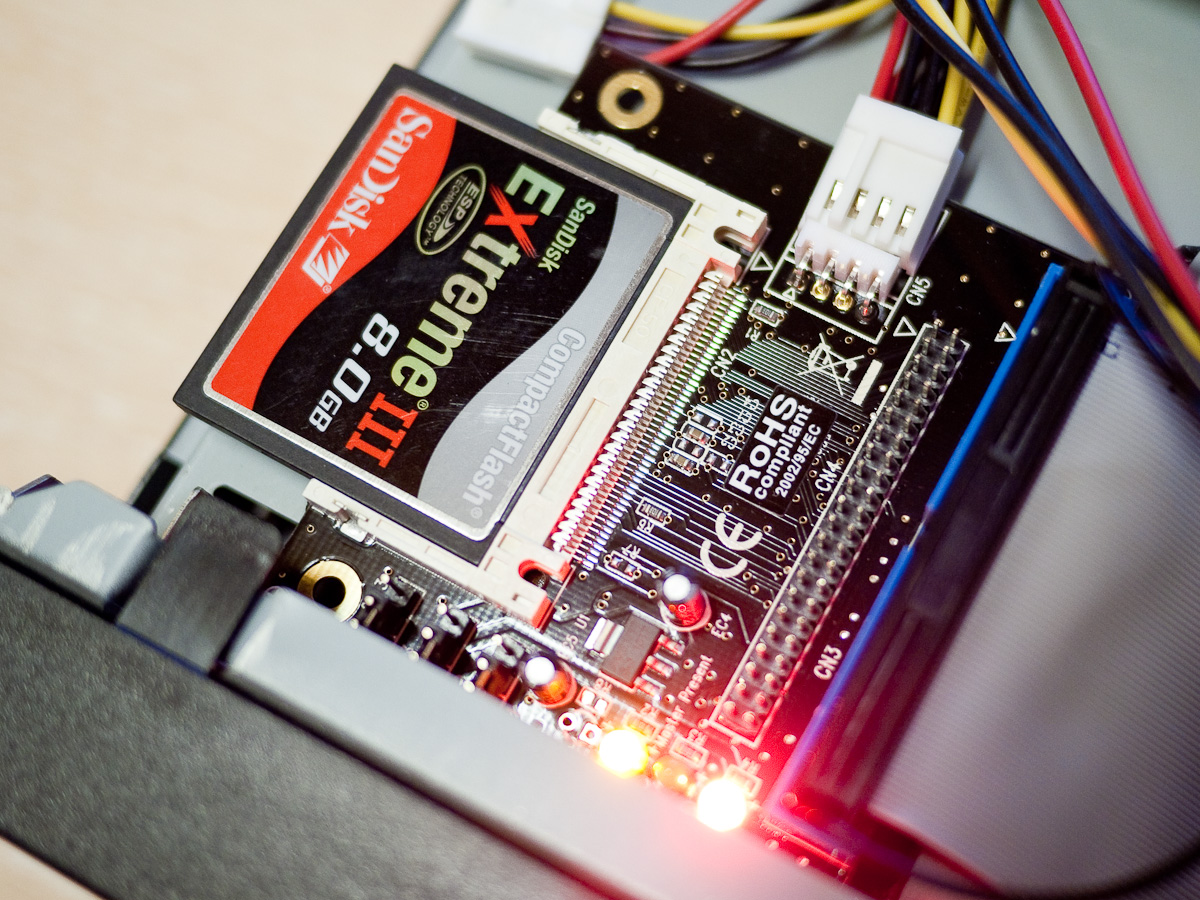
Compact Flash IDE Adapter

These particular units had Windows XPe installed on 256MB DOM’s and the installations were heavily locked down to prevent users doing anything other than the task they’d been specified for.  The first thing I needed to do was get into the password protected BIOS.  This was pretty straightforward, I found the password ‘Fireport’ quickly via Google.  I pulled out the DOM and attached a Startech IDE to CF adapter holding a SanDisk 8GB Extreme III card to the primary IDE channel and an old CD drive to the secondary and made the necessary changes in the BIOS.

Booting from the XP installation CD I converted the already partitioned and formatted compact flash card (via one of my Canon DSLR’s) from FAT32 to NTFS and started the XP installation process.  It took a fair while but was mostly successful.  Upon booting the new installation the system would sit at the ‘Welcome Screen’ for several minutes before continuing to boot successfully, and then other times it would stop at the same point and display the following dialogue box:-

Windows created a temporary paging file on your computer because of a problem that occurred with your paging file configuration when you started your computer. The total paging file size for all disk drives may be somewhat larger than the size you specified.

The related Microsoft support article gives the following information:-

This error message may occur if Windows tries to create a paging file on an NTFS volume, but the System and Administrators accounts do not have the correct NTFS permissions on the volume.

Initially I couldn’t figure out what was causing this problem and I also ran into problems using Windows Update which gave the following warning:-

To install items from Windows Update, you must be logged on as an administrator or a member of the Administrators group. If your computer is connected to a network, network policy settings may also prevent you from completing this procedure.

I was of course logged in as Administrator so again turned to Google hoping to find a solution.  In the course of trying several remedies with no luck I noticed via Windows Explorer that XP was recognising the system drive as a removable unit.  I’d forgotten that I needed to update the CF card so it would be recognised as a fixed disk.

Via Epia Motherboard

SanDisk used to supply some software that would allow you to update their CF cards to either identify themselves as fixed or removable, it’s called ATCFWCHG.COM and can still be found in various places for download, I got a copy from RapidShare and found the instructions on how to use it here.  It needs to be run from DOS so I attached a USB FDD to the Wyse unit, copied the file onto an old Windows 98 boot floppy and booted the system from it.  I ran ATCFWCHG.COM using ATCFWCHG.COM /P /F from the command line and the word PASS was displayed.

Upon rebooting from the CF card the hang at the ‘Welcome Screen’ was resolved and Windows Update worked correctly, clearly the problem lay in the fact that XP will not allow you to create its page file on a removable drive, it was now recognising the drive as a fixed disk.

On that note I had to make a decision about how I was going to manage the page file given that the constant reading and writing from the disk that virtual memory requires is not good news for CF cards with their limited read\write lives.  The choices were, no page file and the possible problems that can cause, a standard page file that might destroy the CF card pretty quickly or move the page file to another drive.

Given that this machine is essentially going to be doing nothing most of the time and only serving up the BBS on the odd occasion someone dials in I decided to insert the original DOM in the second IDE socket, format it and use it for the page file.  Although it only offers 239MB formatted space I’m sure it will cope with the low load the system will be experiencing.

After a successful installation of the Diamond Supra Express modem in the solitary PCI slot provided I copied over all the BBS related files and fired it up.  Everything is working nicely and the box is completely silent.