
I recently acquired a Samsung PenMaster in really good condition and have decided as part of my Retrochallenge Winter Warmup to get it up and running and see what I can do with it. Now the best part of 20 years old, this 386 based tablet is rarely found in the wild as according to some sources it never made it to commercial distribution as a Samsung product. The design itself would however go on to be rebadged and sold as the GRiDPAD 2050SL. An earlier GRiDPad, the 1910 was the first of these new tablet computers and was also manufactured by Samsung for GRiD having been developed by IDE Inc. Against the backdrop of the current legal battles between Apple and Samsung I thought it might be amusing to photograph the PenMaster and iPad side by side.

PenMaster Post Screen
Back in the early 90’s pen and tablet computing was going to be the next big thing. With GRiD and the Go Corporation leading the charge, Microsoft, characteristically behind the curve, scrabbled to bring out suitable software for Windows, having been beaten to the market by the likes of PenPoint OS. Windows for Pen Computing was subsequently released in 1991. Many well known brands jumped on board and began to develop and release pen based computers but by 1993 it was becoming increasingly apparent that demand for this new approach to mobile computing was simply not strong enough. Early independent vendors either failed or were bought out by larger companies whilst the likes of HP, Compaq, IBM etc withdrew products or halted development. Incidentally it was around this time that Apple brought to market the ill-fated Newton.

Launching Windows for Pen Computing
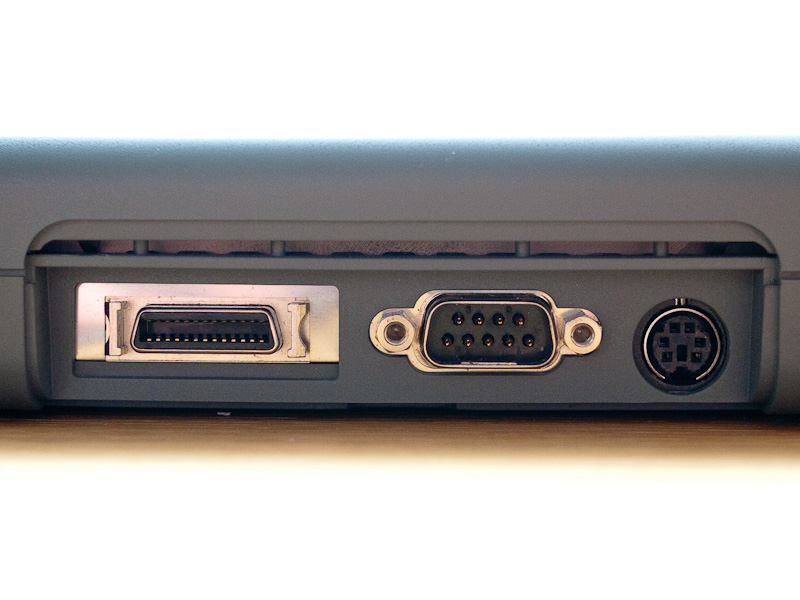
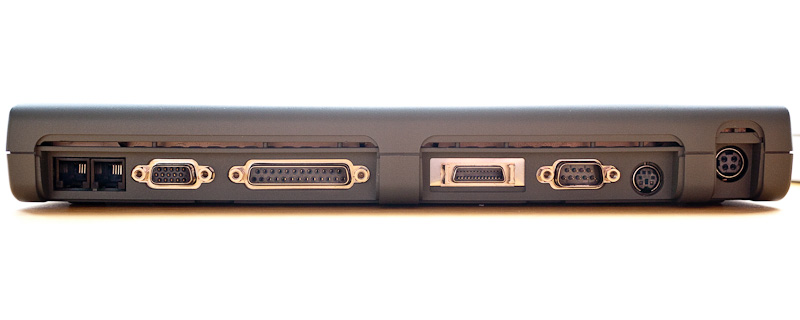
The Samsung PenMaster I’ve been playing with has a 60 MB HDD, 4 MB of RAM and a 386/20 processor. There is a built in modem, a parallel port, one serial port, an FDD port, VGA out, a PS/2 keyboard input and a PC Card slot. The unit has a Phoenix BIOS and runs MS-DOS 5 and Windows for Pen Computing version 1. The first problem with getting the unit running was a lack of power supply. The DC in required is 17.5V and 1.5A.
For some time now I’ve been after a bench top power supply and I finally relented and ordered this model which came labelled as an Eagle EP-613. The power connector on the PenMaster is a four pin mini-DIN variety. Fortunately I had one of these on an old non-working power supply from a mini-ITX system that I’d built several years ago so I cut it off and wired it up to the new power supply. I took the battery out turned the PenMaster on, much to my relief the Samsung promptly sprung into life and ran a successful POST, however my heart briefly sank when the dreaded ‘No boot device available’ message appeared. Also displayed was ‘Invalid configuration Information – run SETUP program’ but I could see no obvious way of doing that.

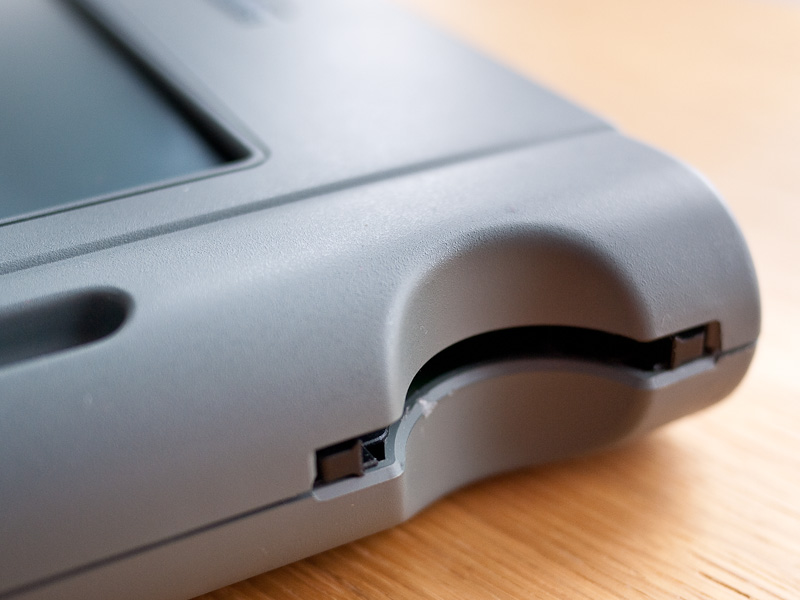
PC Card Slot
I turned the machine off and on again and this time noticed it briefly displays another message, ‘To run SETUP, press F2 or tap the pen inside the box’. The message appears briefly and subsequently disappears. I grabbed the stylus and tapped in the box and was into the BIOS where I simply loaded the defaults and saved and exited.
This time the HDD whirred up and the screen was soon displaying the Windows for Pen Computing splash screen. A few moments later I was into what is essentially Windows 3.1 adapted for control by stylus. It appears to be a clean install with nothing else on the HDD and seems to be working well.
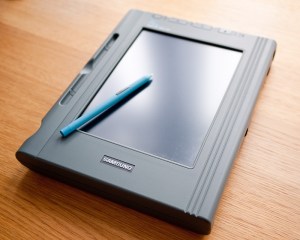
PenMaster & Stylus
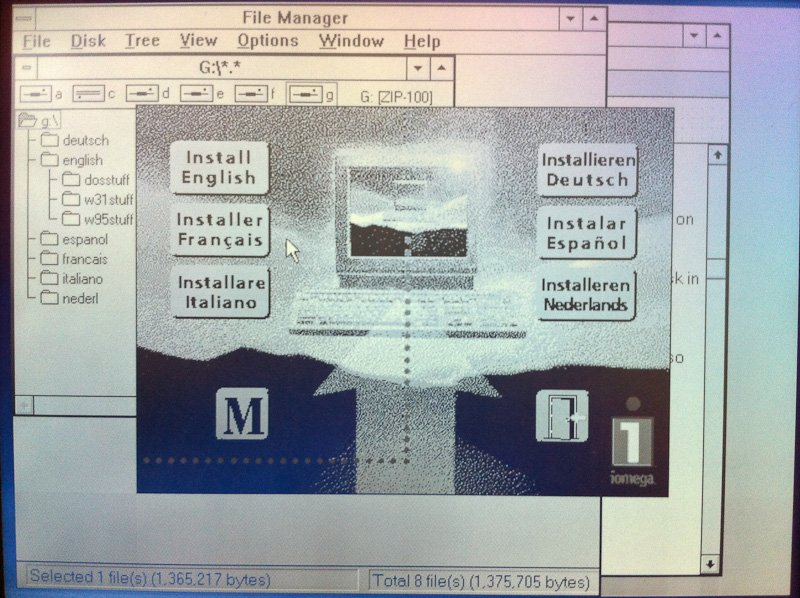
The screen itself is showing its age, it’s quite uneven and seems to require constant fiddling with the contrast to maintain legibility. By default it turns itself off after 20 seconds of inactivity, it may be that if I amend this and allow the screen to warm up it will maintain a better image. I have a number of avenues to explore with the PenMaster, not least how to get more software onto it given that I don’t have a suitable FDD. I’ve already rather optimistically inserted a CompactFlash to PCMCIA adapter in the hope that I might be able to use CF cards with the unit but with no joy. Presumably additional drivers are required, chickens and eggs spring to mind.
The rear ports have soft plastic covers which bend up to allow access. They bend rather reluctantly and look as though they may perish and break after a few uses so I’ve removed them while I play with the unit. I’m going to try and connect up to my BBS, if this works I will at least be able to download some other software to try and I may look at building a new battery.

Samsung PenMaster Ports With Covers Removed
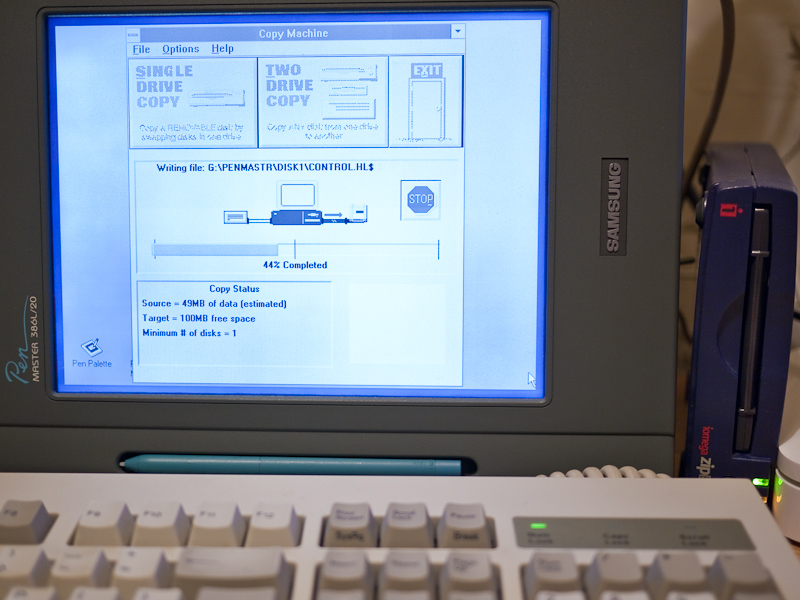






 Retrocosm's Vintage Computing, Tech & Music Blog