
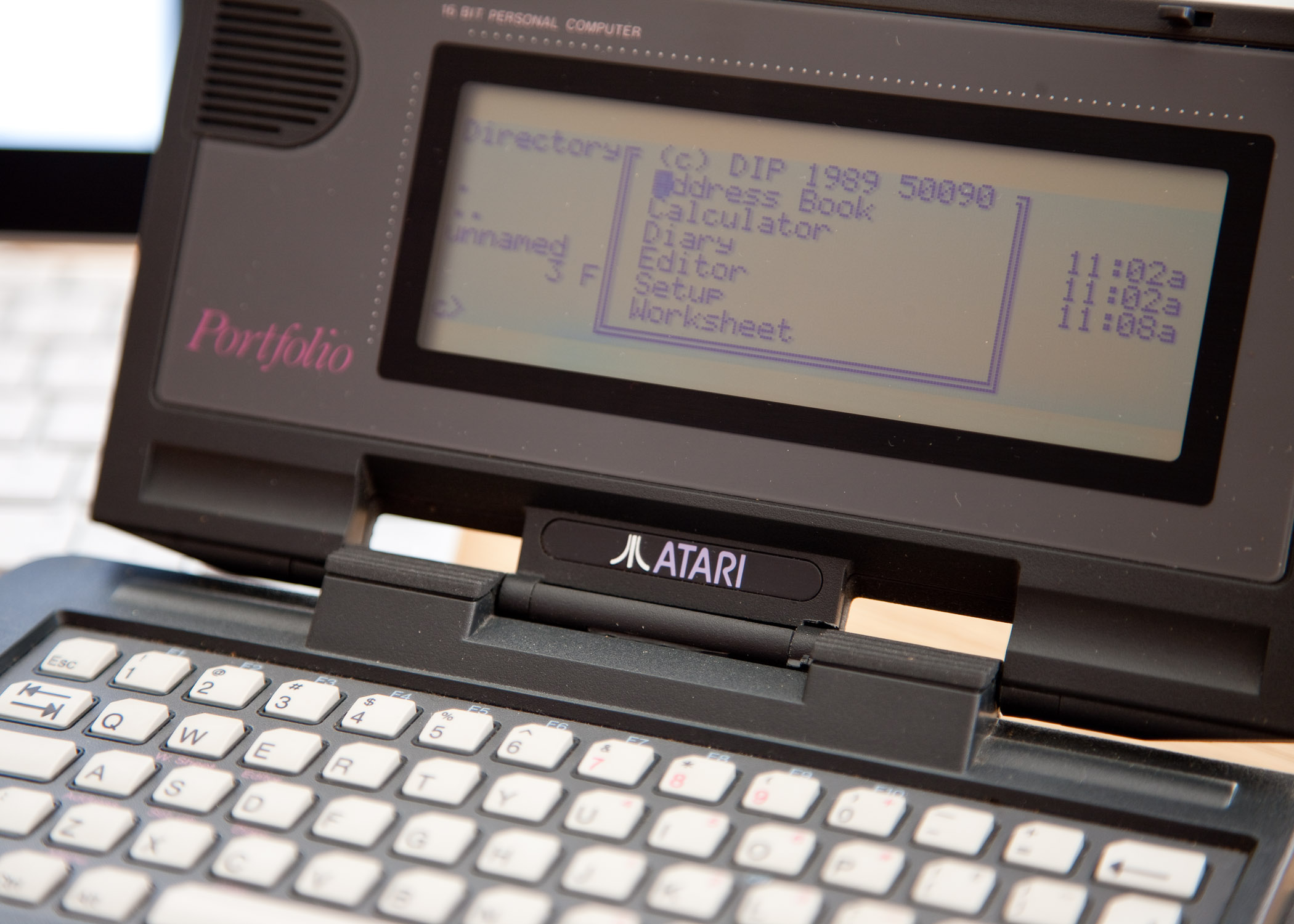
One of my favourite retro machines is the lovely little Atari Portfolio. Originally developed in the UK by DIP the design was licensed to Atari who released the Portfolio in 1989. The unit has an 80C88 CPU running a customised version of MS-DOS called DIP DOS 2.11. There’s 128 kB of system RAM and a 256 kB ROM which contains the operating system and some built in utilities. There’s a non-backlight monochrome LCD displaying 40 characters x 8 lines.
As is the case with many retro machines the challenge is getting software onto them. Fortunately there are a number of options available with the Portfolio including a PC-Card reader unit, compact flash adapter, parallel cable transfer and the method I’m going to discuss here, attaching a parallel port Zip Drive.
I’ve already tried the cable method which requires the Portfolio parallel interface and a suitable cable. It works fine and is a good option for the occasional transfer but gets a bit tedious when you want to move a lot of files around. I decided to take the Zip Drive route as I already have a suitable drive and disks.

Parallel Port Interface
The first port of call then was Klaus Peichl’s site, Klaus developed the required driver, Pofozip.sys for the Atari and is still selling it for a very reasonable 8 €. A word of caution, the driver only works with the original Zip 100 parallel port drive, a later model was released which is not compatible. Klaus will kindly waive payment until you have things working, just in case you have a later drive. You’ll also need at the very least Zipman which will partition and format the zip disk in to three 32 Mb partitions, this can also be downloaded from Klaus’s site long with a couple of other utilities.
Of course you will need a method of transfering the driver and utilites to the Portfolio before you can set up your Zip Drive, I used the parallel cable and FT.com. Once transferred you need to create a config.sys file with the Portfolio’s built in editor. Press and hold the red Atari key and tap E to bring up the editor. If you’ve copied pofozip.sys to your c: drive type device=c:\pofozip.sys into the editor then press and hold the function key and tap F1 to bring up the menu, ‘Files’ should be highlighted, press return and scroll down to ‘Save As’ and save the file as config.sys on your c: drive.
Now do a CTRL ALT DEL to reboot the Portfolio and load the driver. Ensure your Zip drive is correctly connected to the parallel interface and fire up Zipman. At this point if your driver has not successfully loaded you’ll get an error message, if everything’s fine you be presented with the Zipman menu. From here you can choose which partition to format by pressing ‘P’ to select each of the three choices. Pressing ‘T’ will cycle through the format options, the option that worked for me was 32M/FAT12. I ran into problems reading and writing to the disk from Windows 95 when I tried the other options.
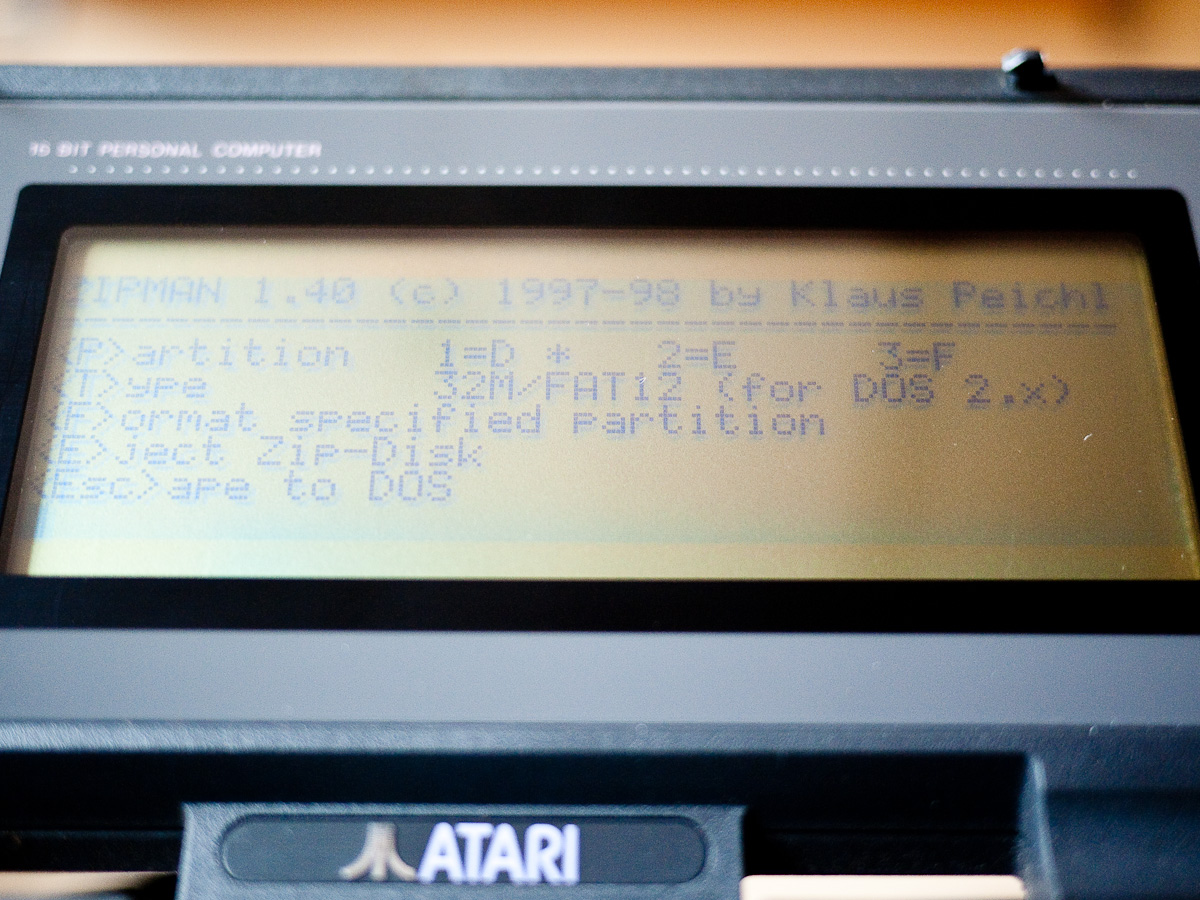
Zipman Menu
Format each of your partitions and you should be ready to roll. Attach the Zip drive to your Windows 95 machine (if you need Win 95 drivers for the Zip drive you can get them from Iomega here) and transfer your Portfolio files onto the Zip drive. Windows will only see the first partition but you can copy files from there to the other partitions with the Portfolio if necessary. I found that all the software I have fitted onto the one partition anyway.
Once you’ve reconnected your Zip drive to the portfolio you should be able to access all your files from the d: drive. You can move them to the other partitions now if you want to clear the d: drive and transfer more stuff onto it from your Windows machine. If you’ve got that many files for the Portfolio do let me know.
I’ve downloaded various stuff for the Portfolio, most of it from here and am working my way through trying it all. I’m also hoping I’m to acquire a serial interface for the portfolio before too long and hook up a modem. Here is some video of me loading the game ‘Phoenix’ from the Zip Drive:-





 Retrocosm's Vintage Computing, Tech & Music Blog